
Sending A Fax From Outlook
Summary
You can create an email addressed to fax#@fax.moreton.com (i.e. 8015316117@fax.moreton.com) and attach the document you want faxed. A cover page will automatically be created and sent with the attached file(s). I have attached to this email a sample conformation page showing the cover page.
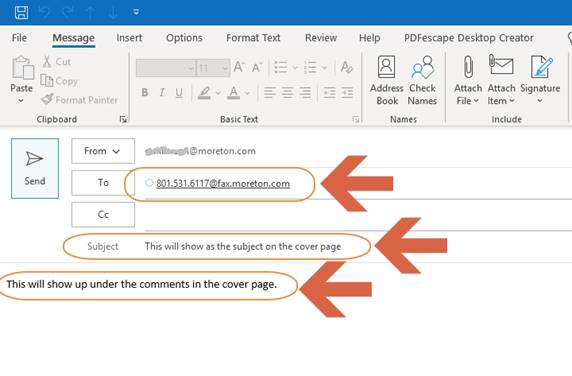
Step 1 – Compose an Outlook Message
From a new Email in Outlook enter the following information to send a fax
• TO: The fax#@fax.moreton.com (i.e. 8015316117@fax.moreton.com), remember that it’s @fax.moreton.com and NOT @moreton.com.
• SUBJECT: This will show up as the “Subject” on the fax cover page.
• EMAIL BODY: The body of the email will show up on the cover page of the fax as “Comments.”
Please do *NOT* put confidential information, or PHI in the body of your email message since it will be visible on the cover page
Step 2 – Attach the documents you would like faxed. Valid document types for fax are
• Adobe Acrobat files (.pdf)
• Microsoft Word (.doc, docx)
• Microsoft Excel (.xls, .xlsx)
• Text Documents (.txt, rtf)
Step 3 – Receive your confirmation email
You will receive an email confirmation once the fax has completed. This confirmation will include the fax cover page. A sample is included on this email.
Comments
0 comments
Article is closed for comments.